
Easy Step-By-Step Tutorial
If you have any suggestions to make this tutorial better, please Email us
Create a Google Places Account
Go to Google Places
Click on "Sign Up" on the upper right hand corner of the page
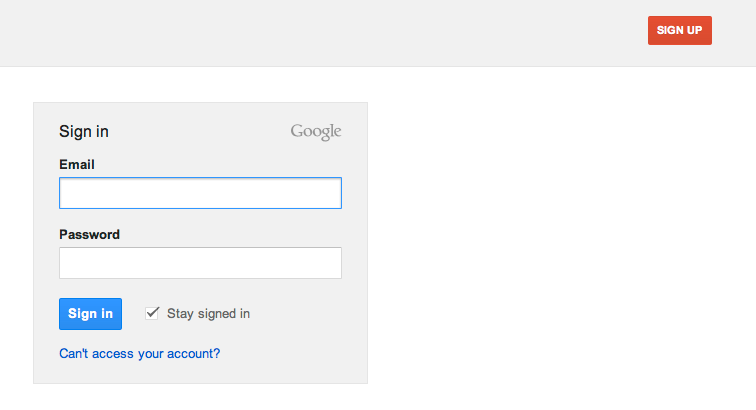
Fill in all of the information on the “Create An Account” page
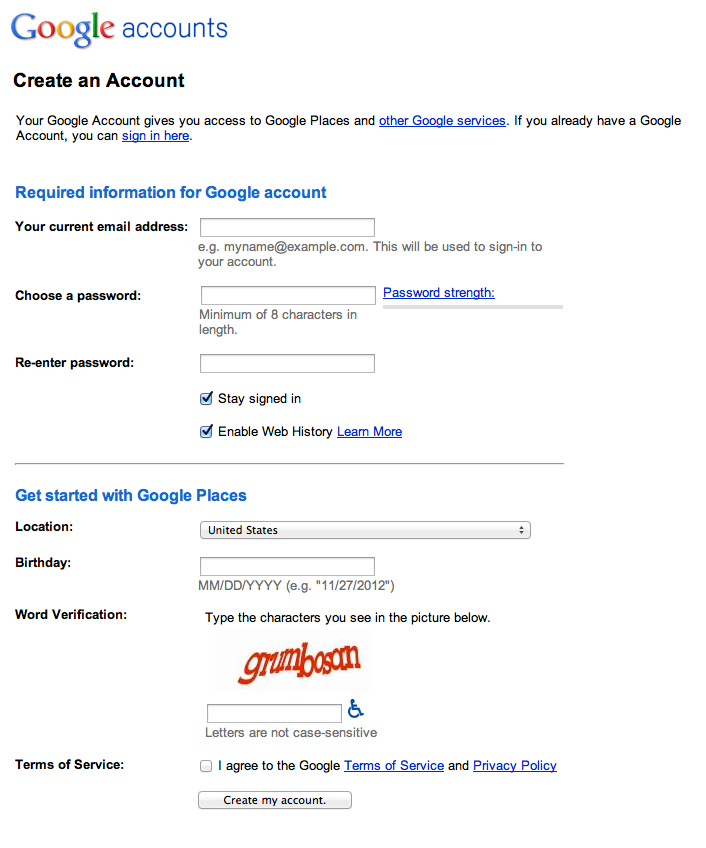
Click on “ Create my account"
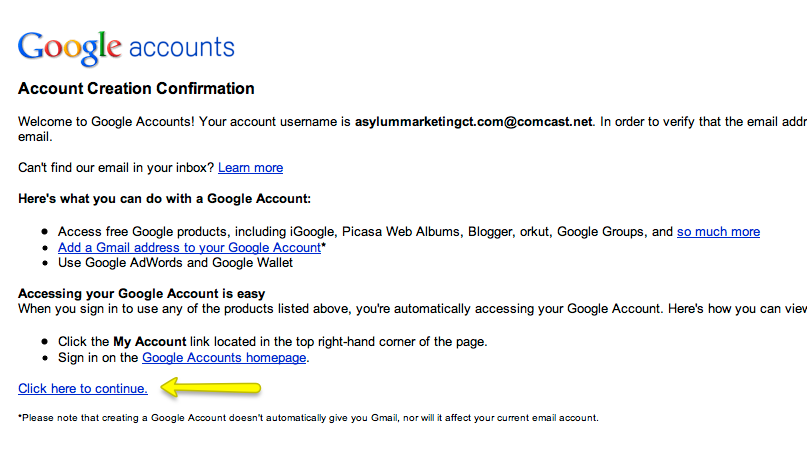
Click here to continue
Add your Mobile phone number
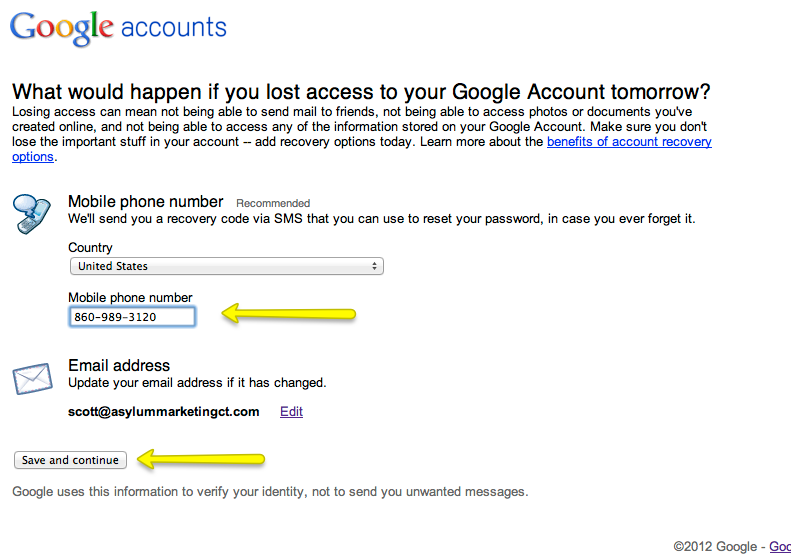
Click on Save and continue
Enter Business Phone Number
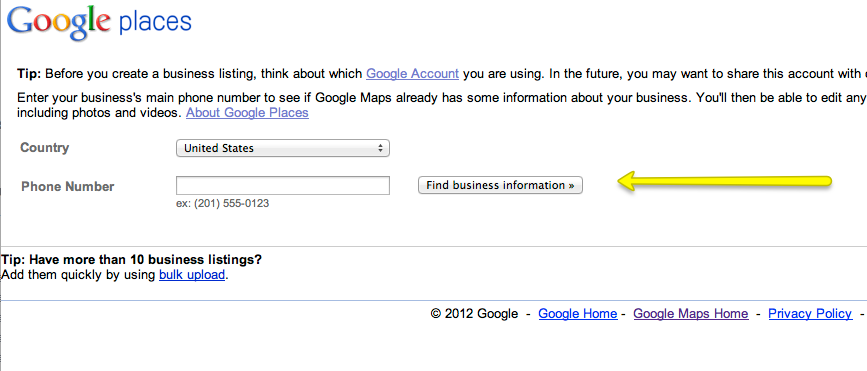
Click on "Find business information"
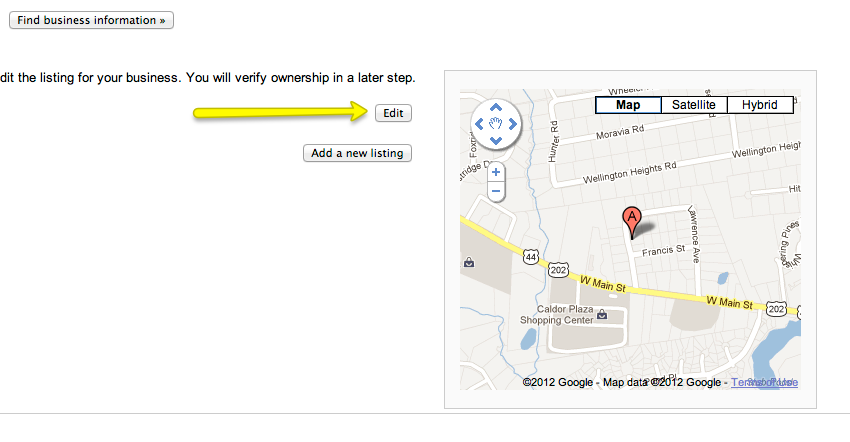
Click “Edit”
Fill in Basic Information
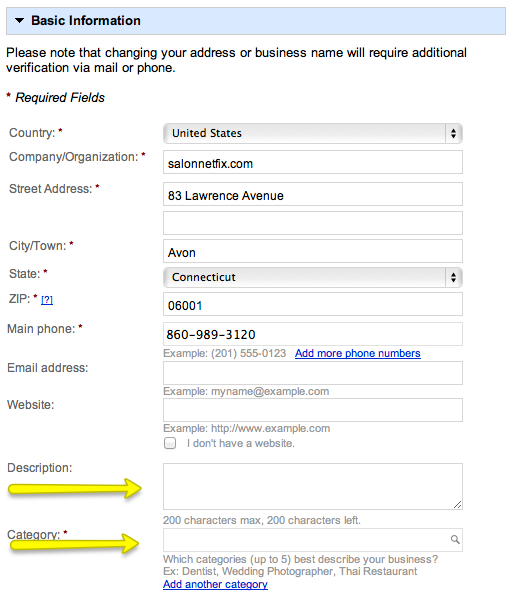
Enter the Description that we supplied you with to give to your webmaster
Enter up to 5 Categories
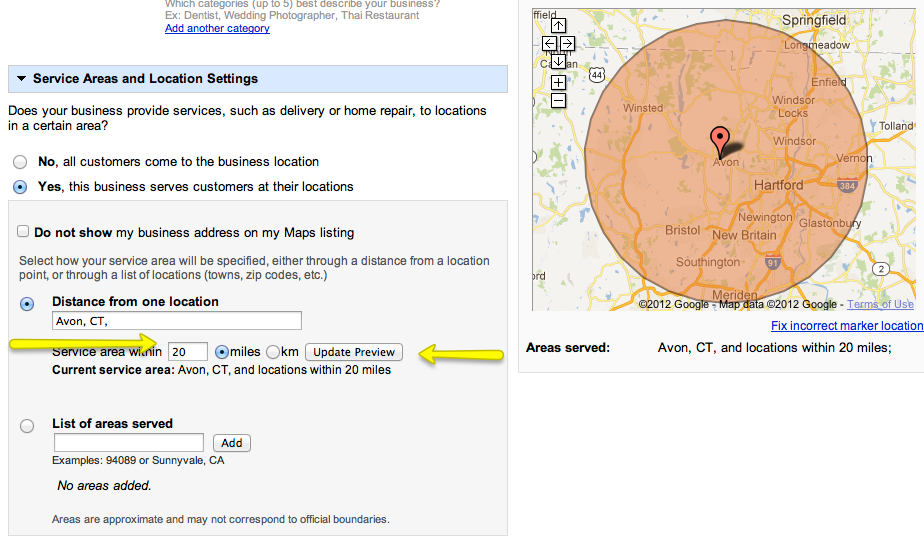
Under Service Areas and Location Settings click on No, all customers come to this location or Yes this business serves customers at there locations
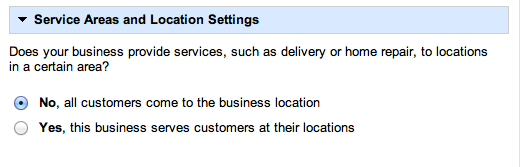
If you chose Yes this business serves customers at there locations enter service area within ____ miles and click on Update Preview
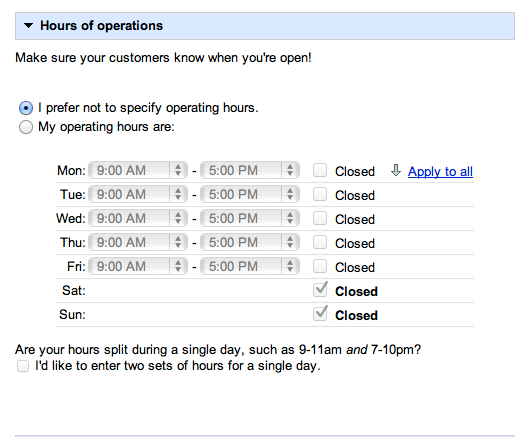
Enter Hours of Operations
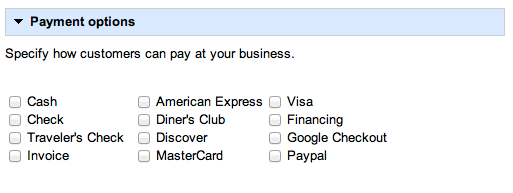
Enter Payment options
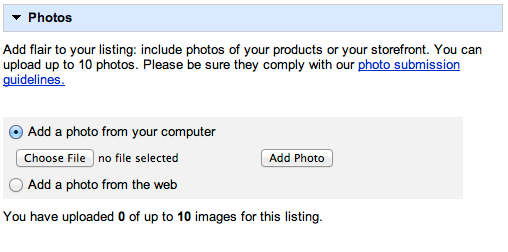
Add up to 10 photos.
It’s important to add as much information as you can so try to add all 10 Photos
Add Videos
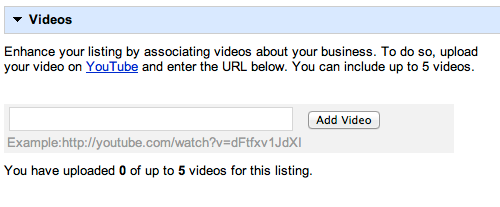
Add Additional Details
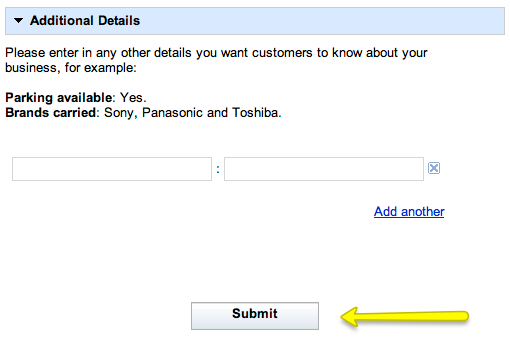
Click Submit
Click on “Verify by receiving a link via mail’
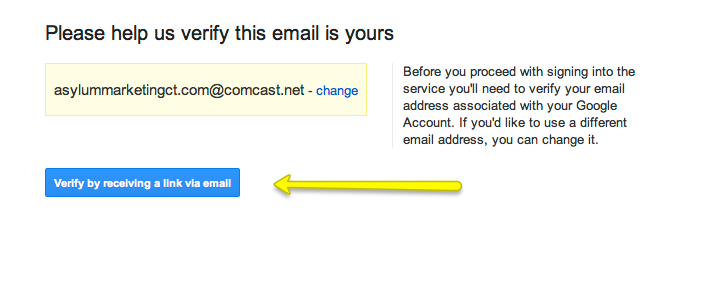
Go to your Email and click on the link
Congratulations you have created a Google Places Page!!!
Create A Yahoo Local Account
Go to Yahoo Local
Click on "Sign Up"
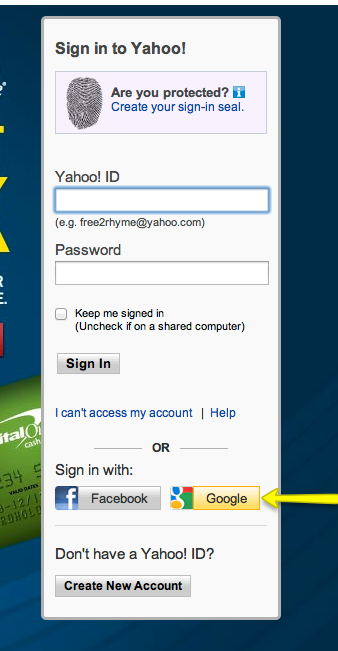
Click on sign in with your Google Account
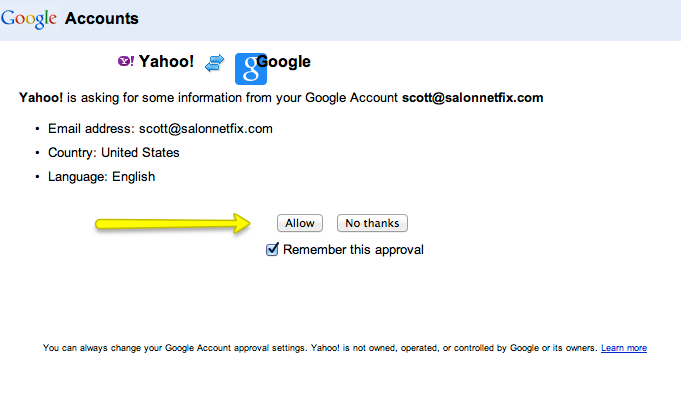
Allow if you choose
Fill in information
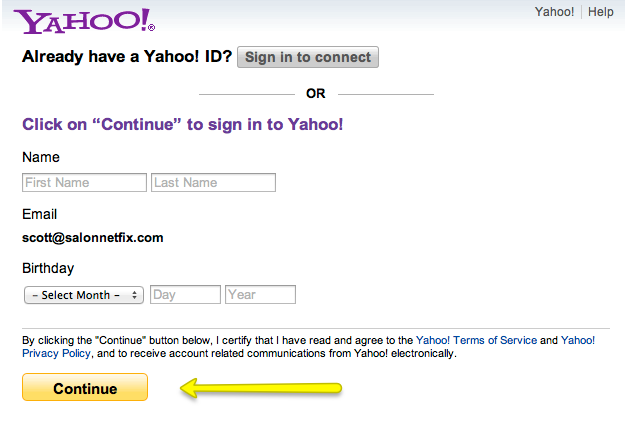
Click Continue
\Enter Account Contact Information
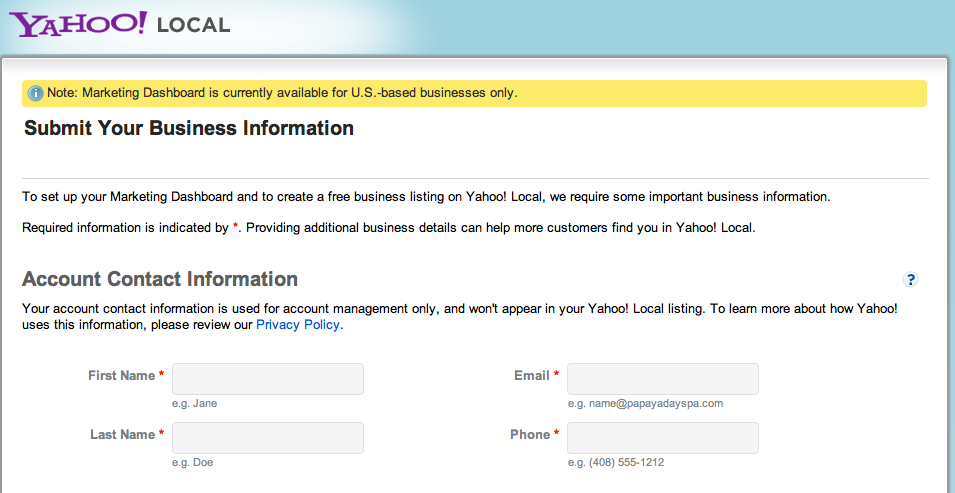
Enter Business Information
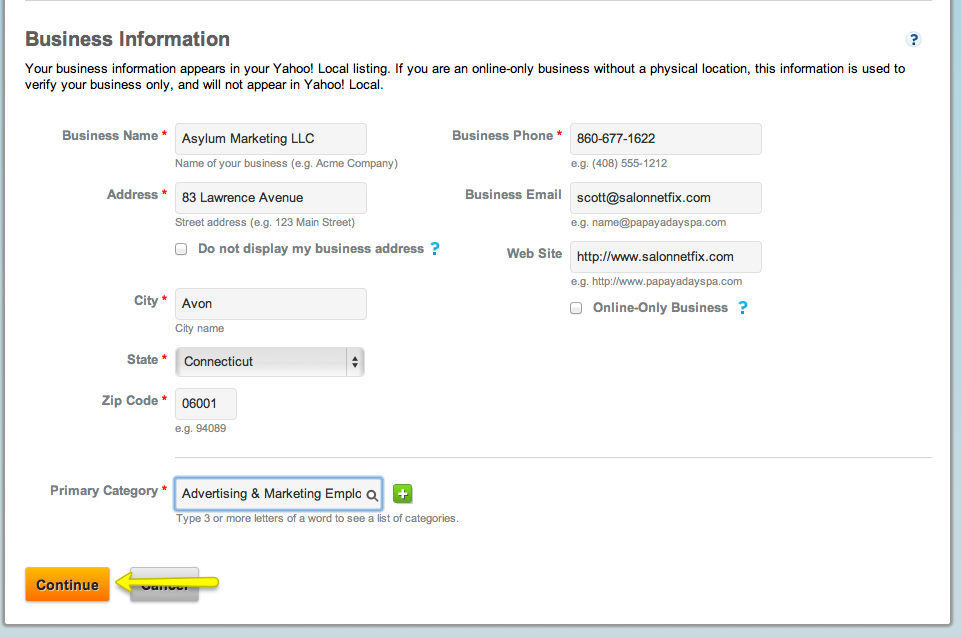
Click "Continue"
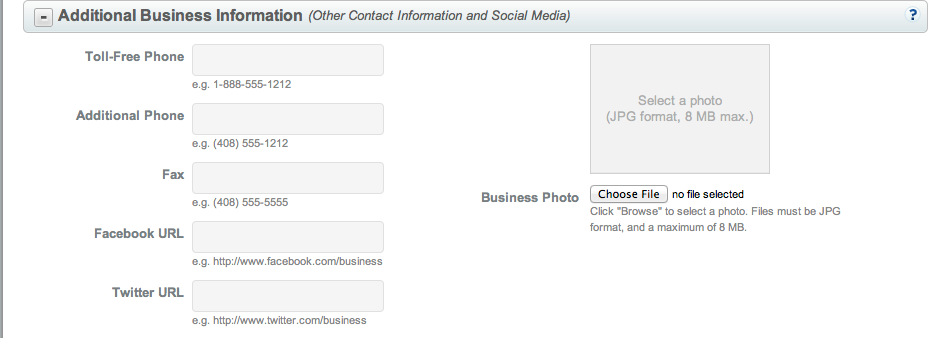
Click on Additional Business Information

Fill in Additional Business Information and add Photo
Click on Hours of Operation
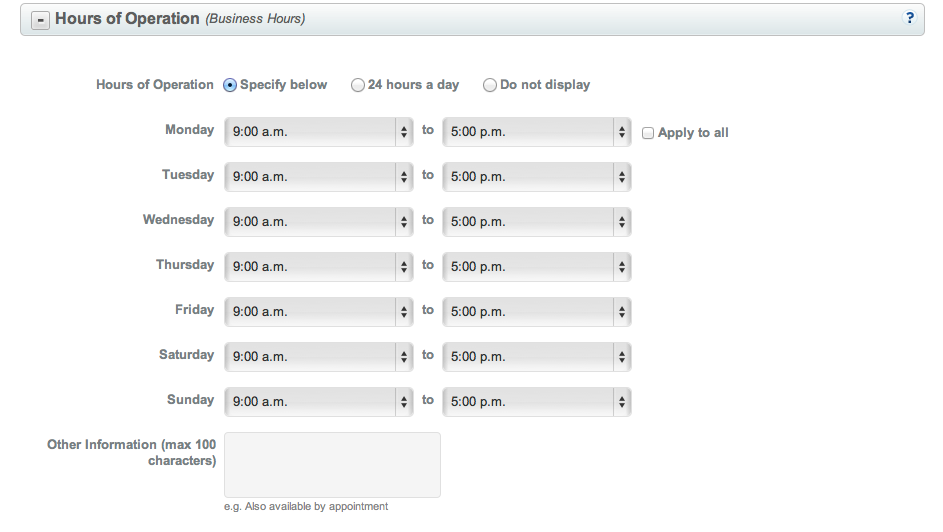
Enter Hours of Operation
Click on Other Operation Details
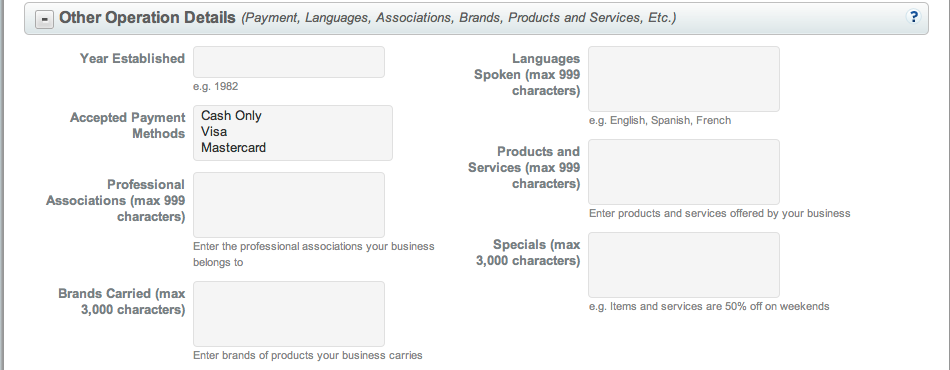
Enter Other Operation Details
Click on Preview Listing

Inspect your Preview Close
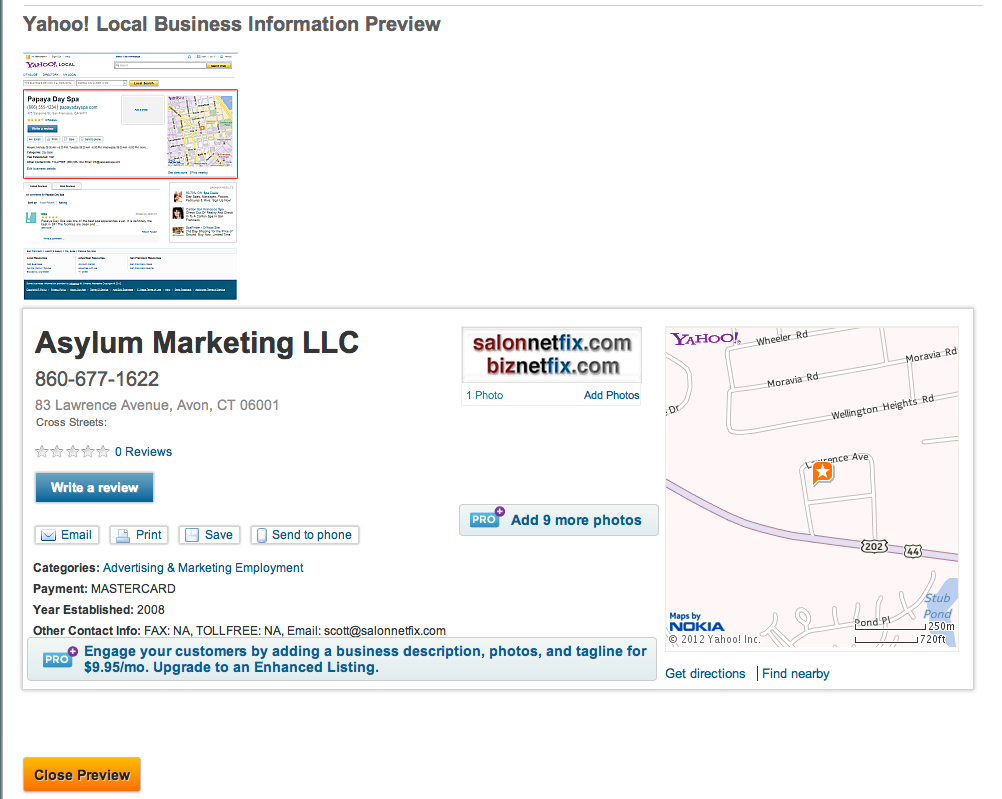
Close Preview
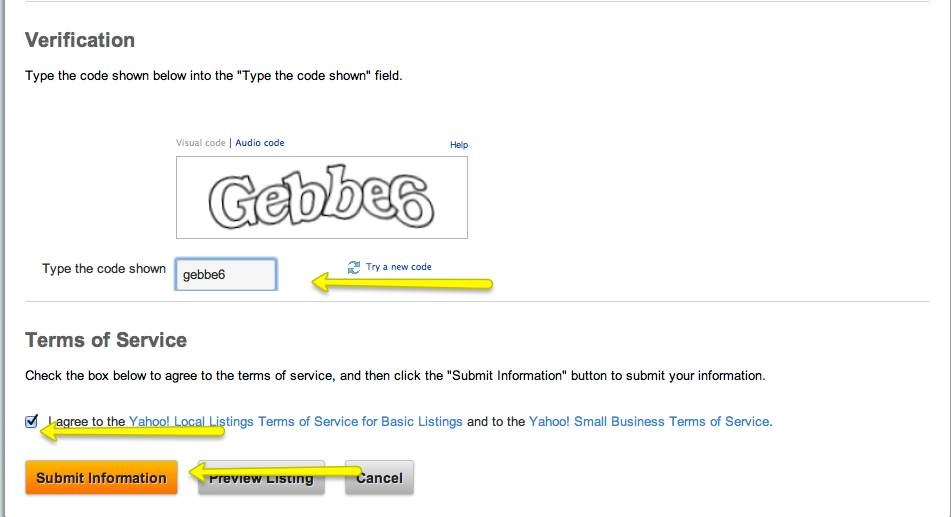
Type in the Code
Click on Agree to the Terms and Submit Information
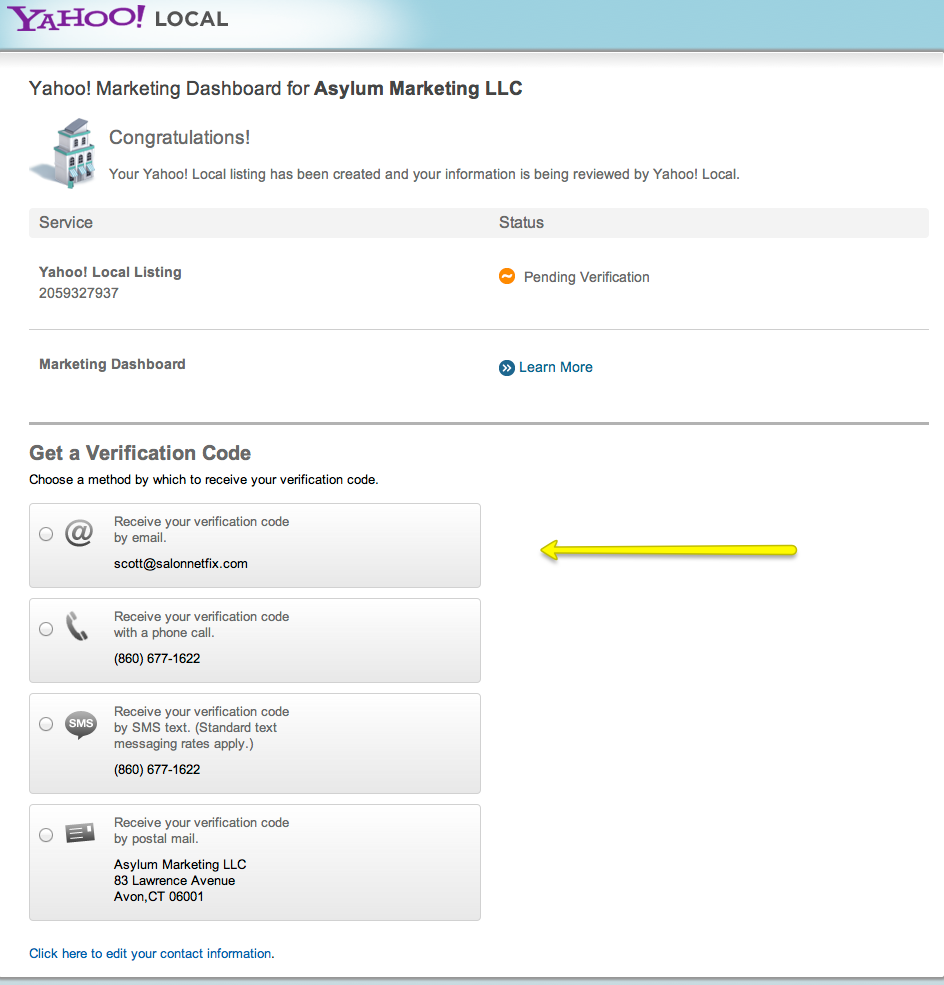
Click on Receive a Verification Code by Email
Congratulations you have created a Yahoo Local Page!!!
Create A Bing Local Account
Go to Bing Business Portal
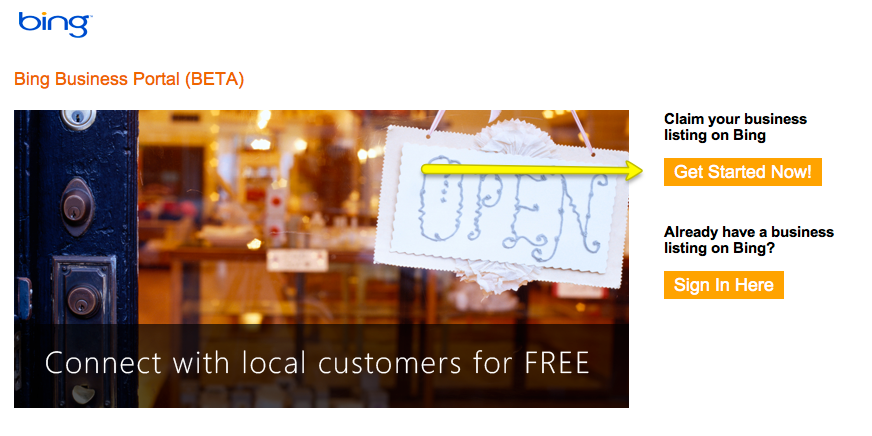
Click on “Get Started Now” under “Claim your business listing
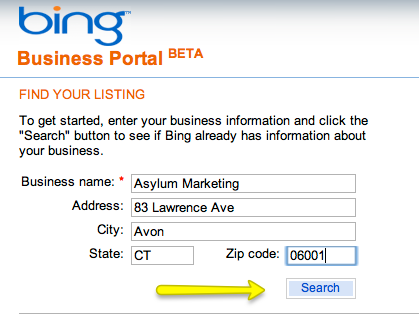
Fill out information and click “Search"
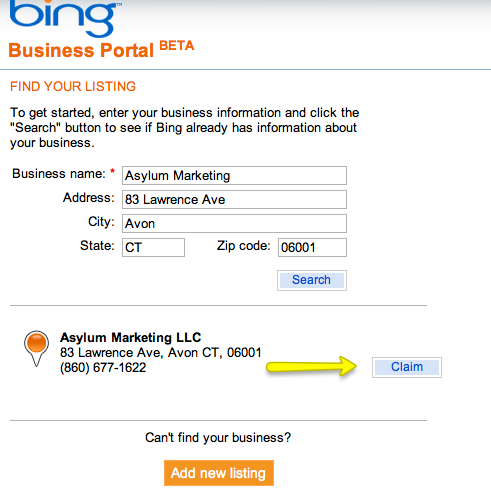
Click on ”Claim”
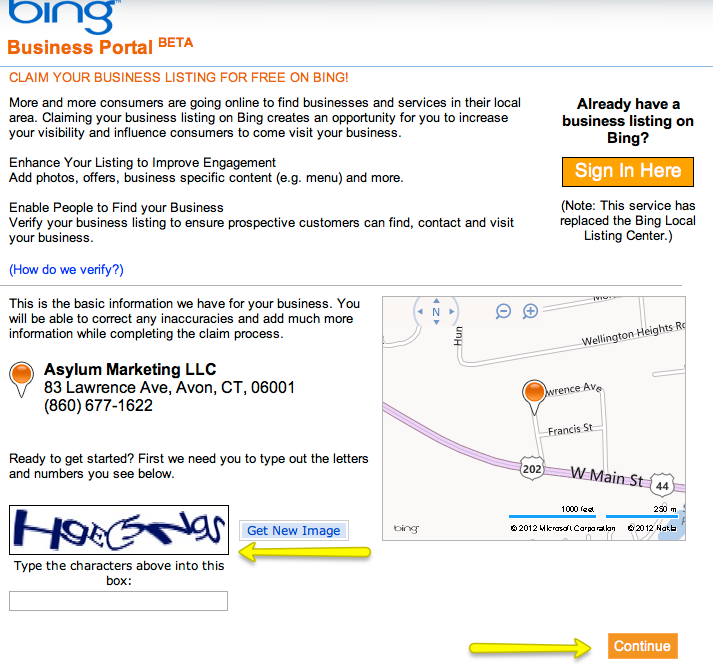
Type the characters into the box
Click “Continue”
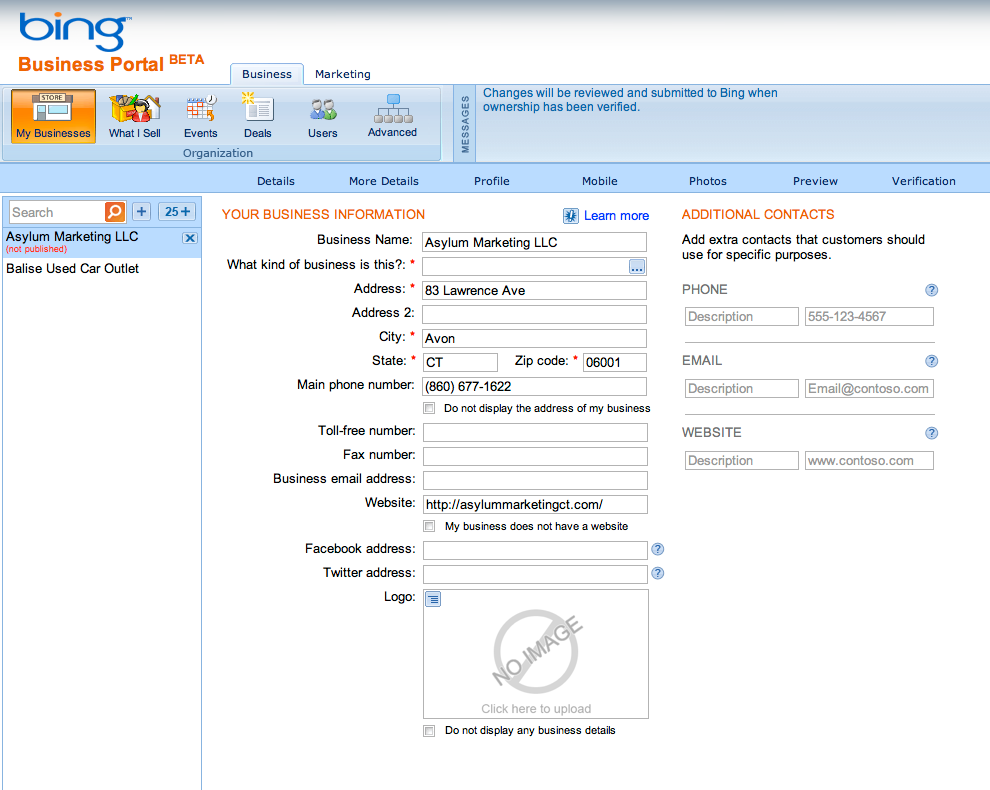
Fill out business information and click “Next”
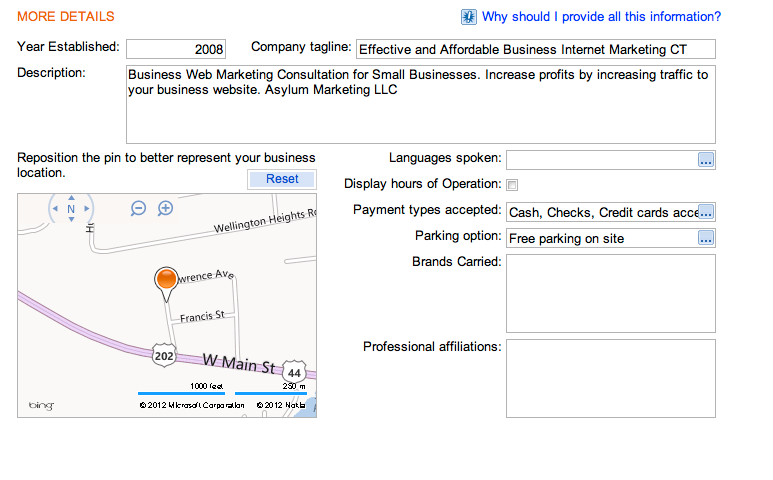
Fill out “More Details” and click “Next”
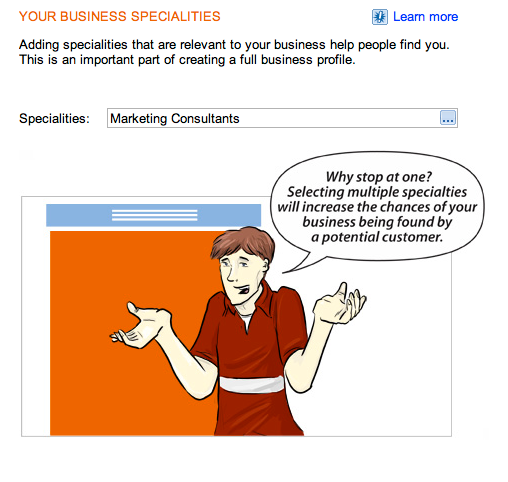
Add Specialties and click “Next”
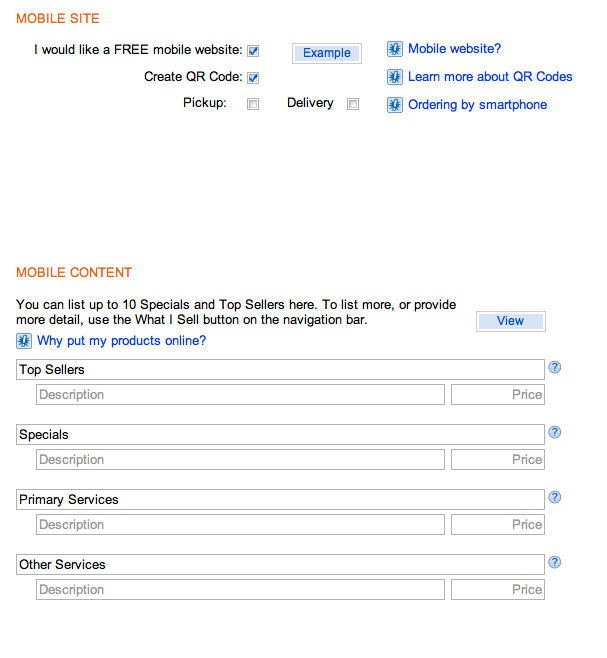
Fill out Mobile Mobile Site Information and click “Next”
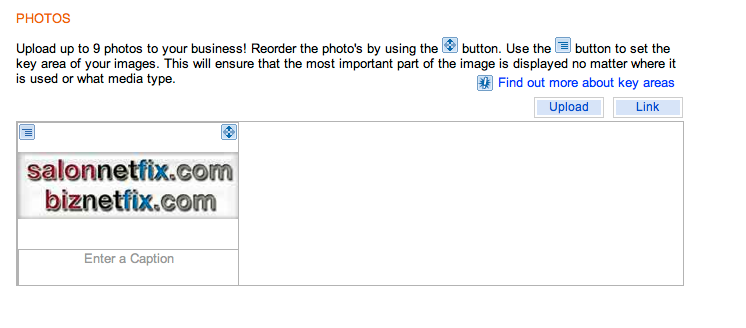
Upload up to 9 Photos and click “Next”
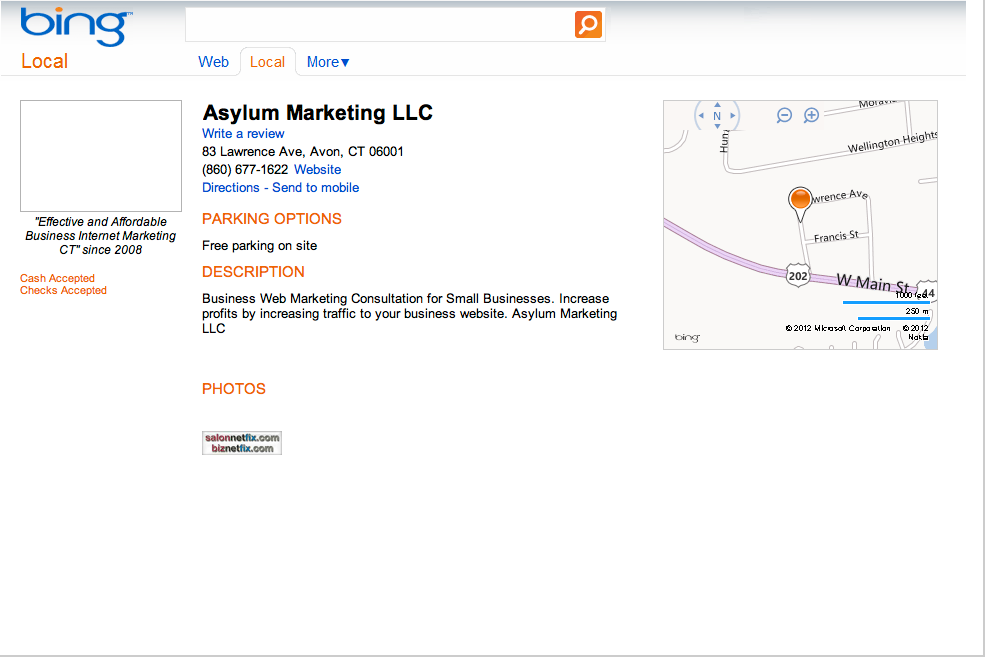
Preview your Bing Local Page and click “Next”
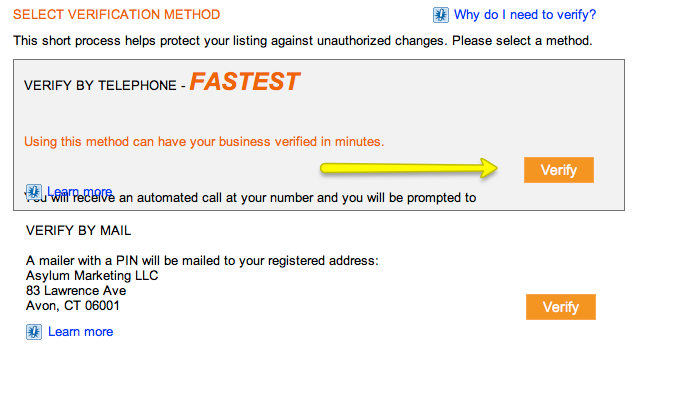
Select Verify by phone
When the phone rings a Code will appear on your screen
Enter the Code on your phone
Congratulations, you have created a Bing Local Page!!!
Directories
Directories are websites that potential clients go to for services
It’s important to claim your business on as many Directories as possible since it gives you the ability to showcase your business and direct the client to your website or phone number
This is how to claim and optimize your business on a few directories
Google your business name, town and state
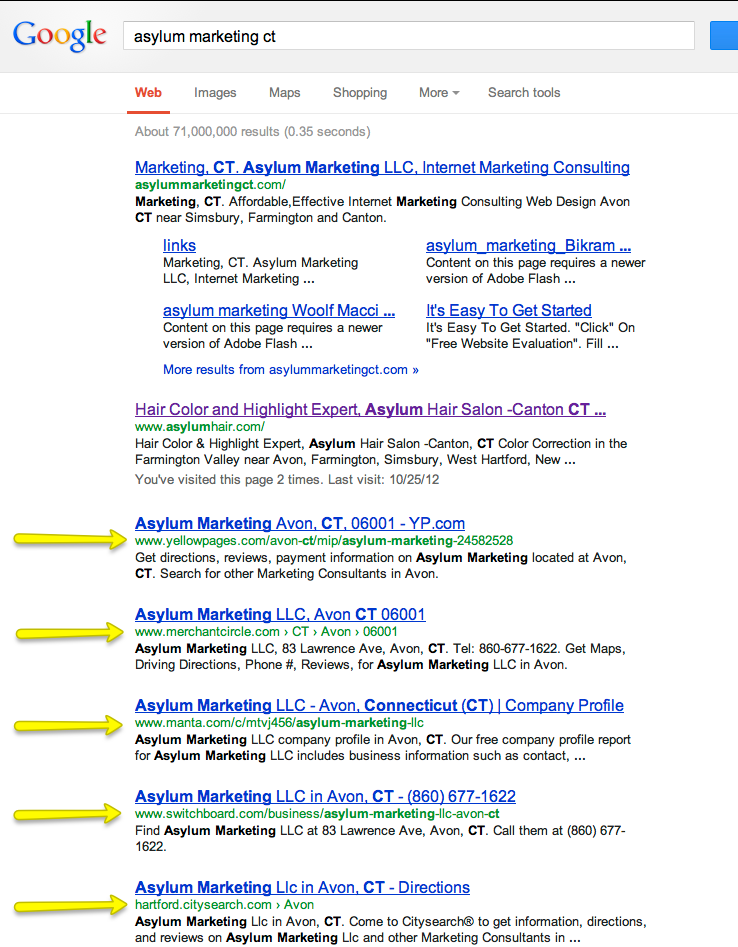
The sites with the yellow arrows are Directories (notice the URL’s)
Start at the top Directory and work your way down
There are hundreds of Business Directories on Internet and they are all different and can get frustrating at times.
It's best to get your business description and images ready to make it easier.
Lets start with Yelp. yelp is also how Siri and IPhones seach for businesses.
Go to Yelp.com
Click on “ Go to Yelp for Business Owners

Click on “Create your free account now”
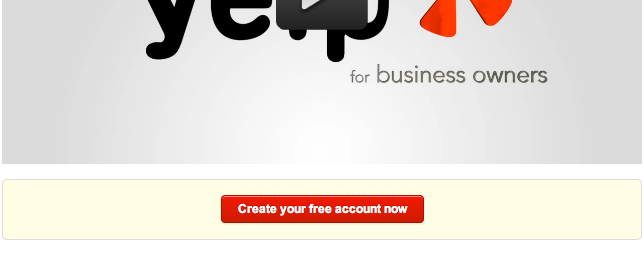
Click on “Create your free account now”

Enter Business Name, Town and State Click "Search"
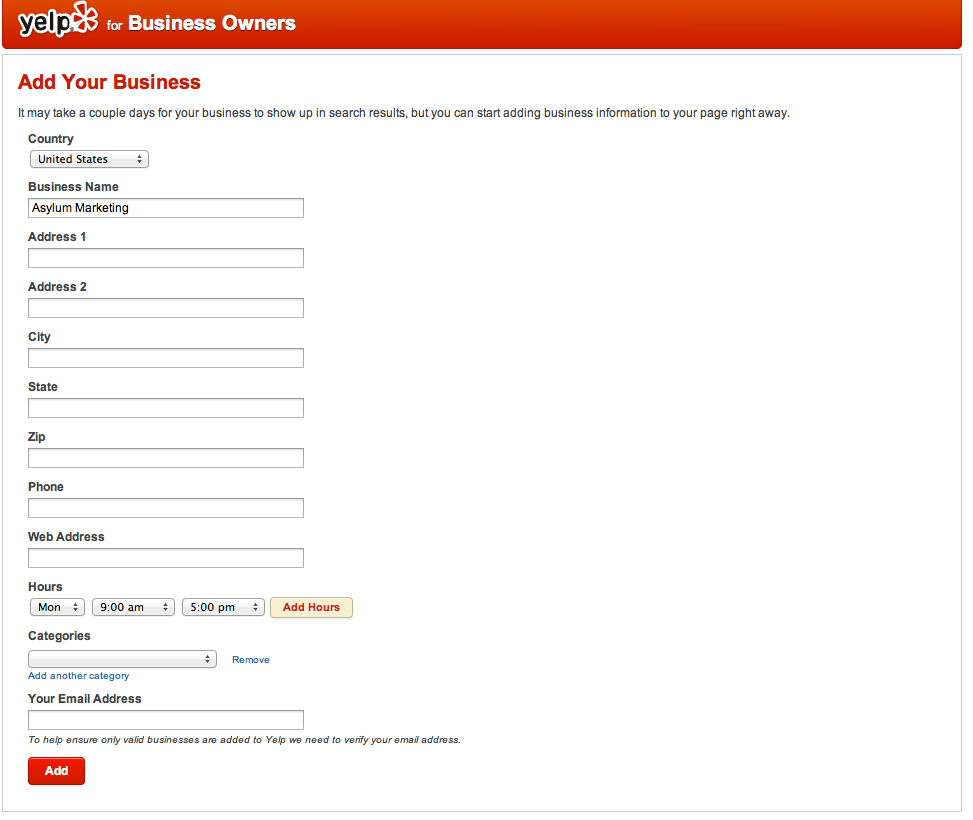
Fill out the “Add Your Business Form
Click “Add”

Click on “View Your Business On Yelp”
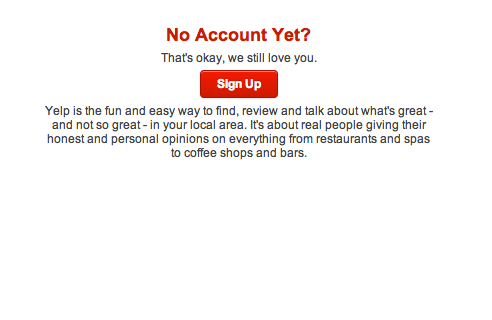
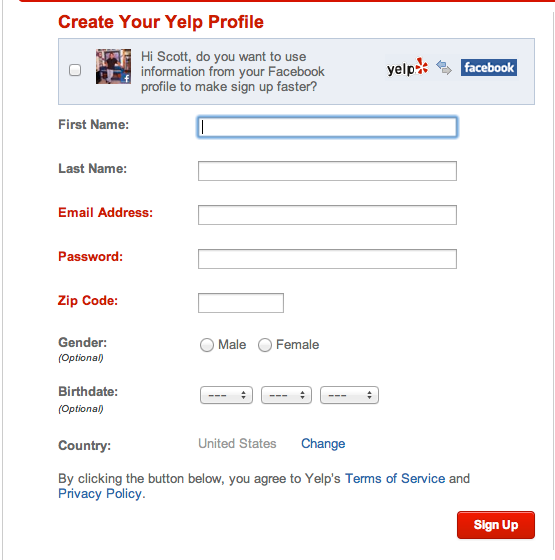
Fill out Yelp Profile
Click on “Sign Up”
Congratulations, you have created a Yelp Page!!!
Top 20 Business Directories For Local Marketing
1. Google
2. Bing
3. Yahoo!
4. Yelp
5. Merchant Circle
6. LinkedIn
7. YellowPages.com
9. Whitepages
10. Supermedia
11. Yellowbook
12. CitySearch
13. Mapquest
14. Biznik
15. Local.com
16. Foursquare
17. ThinkLocal
18. CitySlick
19. USYellowPages
20. Manta